How to Use Suica on a Smartphone | Device Requirements for iPhone, Android, and Smartwatches
The requirements for using Suica on an iPhone or Android device, set out from the official guidance of JR East, Apple, and Google. Covers supported devices, the validity period of Welcome Suica Mobile, adding money and checking your balance, and what to use instead on a device that is not supported.
Overview
Suica on a smartphone is a transit IC card that lets you tap at ticket gates and in shops without buying a card. Whether you can use it depends on your device. For iPhone, you need iPhone 7 or later (that model included). For Android, you need a device that supports Osaifu-Keitai (おサイフケータイ) and is listed in JR East's list of supported models (Android 5.0 or later, that version included). If you are travelling with a device that does not meet these conditions, use the card version, which you can buy at airports and major stations.
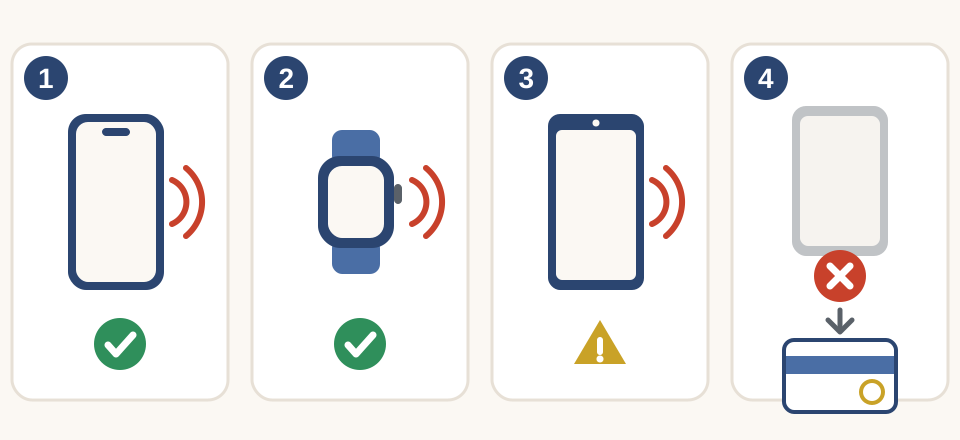
- iPhone: works if the model is supported.
- Smartwatch: works if it is a supported model bought in Japan.
- Android: works if it supports Osaifu-Keitai and is on the list of supported models.
- A device that matches none of these: cannot be used. Use the card version.
Your options
- iPhone: With iPhone 7 or later, you can add Suica to the Wallet app. For travellers to Japan there is also JR East's Welcome Suica Mobile app (iOS); a Suica issued in that app can be used for 180 days.
- Apple Watch: Apple Watch Series 2 or later (that model included). To use Suica, you need an Apple Watch that was bought in Japan.
- Android: On a smartphone that supports Osaifu-Keitai (Android 5.0 or later, that version included), you issue the card in Google Wallet or the Mobile Suica app. JR East publishes the supported models one by one.
- Wear OS smartwatches: Only models that support FeliCa, and Google states as a condition that the device must have been bought in Japan.
- Devices that do not match any of the above: Suica on a smartphone cannot be used on that device. Consider the card version of Welcome Suica (valid for 28 days).
Step by step
What to check before you travel
- Check on the official pages whether the device you already have is supported. The list of models is updated, so look at it shortly before your trip.
- For iPhone, you need an Apple Account signed in with two-factor authentication.
- The Welcome Suica Mobile app is for people aged 13 and over. In some countries, downloading apps or adding money is restricted by law; in that case, set it up after you arrive in Japan.
How to use it
At the ticket gate, hold the top of your device (for Apple Watch, the screen side) over the card reader.
In shops, go to a till with the Suica mark, say that you want to pay with Suica, and then tap.
Checking your balance and adding money
You can check your balance by opening the card in the Wallet app or the Mobile Suica app. Besides a card registered in the app, you can also add money in cash at ticket machines and fare adjustment machines in stations. Commuter passes, Green Car tickets (higher-class seats on local trains, for which there is an extra charge) and refunds are handled in a Suica app (the Mobile Suica app or Welcome Suica Mobile), not in Wallet.
Costs
Suica on a smartphone has no deposit like the card version has. The amount you add becomes your balance in full.
What travelers often find confusing
This section is based on travelers' public posts and questions, along with search trends. It is not a collection of personal reviews or ratings.
- Which Android smartphones can I use it on? Only devices that support Osaifu-Keitai and are listed in JR East's list of supported models (Android 5.0 or later). On a device that meets these conditions, you issue Suica in Google Wallet or the Mobile Suica app. A device that does not meet these conditions cannot be used, so use the card version of Welcome Suica.
- What do I need to use it on an iPhone? You need an iPhone that is iPhone 7 or a later model (that model included), and an Apple Account signed in with two-factor authentication. If you meet these conditions, you can add Suica to the Wallet app without buying a card.
- What can I do if I cannot add money with a credit card in the app? You can add money in cash at ticket machines and fare adjustment machines in stations. You can check the balance you added by opening the card in the Wallet app or the Mobile Suica app.
- Can I get the balance left on Welcome Suica Mobile refunded? No. The balance of a Suica issued in Welcome Suica Mobile is not refunded, and it expires when the 180-day validity period from issue ends. Only add an amount that you can use up.
- How can I tap at the ticket gate without unlocking my device? Turn on Express Mode in advance. Then you can tap without unlocking the device or opening an app. At the ticket gate, hold the top of your device (for Apple Watch, the screen side) over the card reader.
Good to know
- When you hand your device to station staff so that they can do something for you, switch to Service Mode first.
- Supported models and conditions of use change. This article is based on the official guidance as of the date the information was checked, so check the official pages for the latest conditions before you leave.
- If your device runs out of battery, you may not be able to go through the ticket gate. It is reassuring to have a backup way of travelling and some cash as well.
- The differences from the card version are set out in the article on the card version.